Your VoicePro eSIM arrives as a QR code, by email and in the VoicePro app, the moment your order is confirmed. Installing it takes about two minutes.
Before you start
- Make sure the iPhone is unlocked (not tied to another network) and connected to Wi-Fi.
- Have your QR code ready on another screen or printout. If you only have the one device, use the "install on this device" link in your confirmation email instead of the QR code.
Install the eSIM
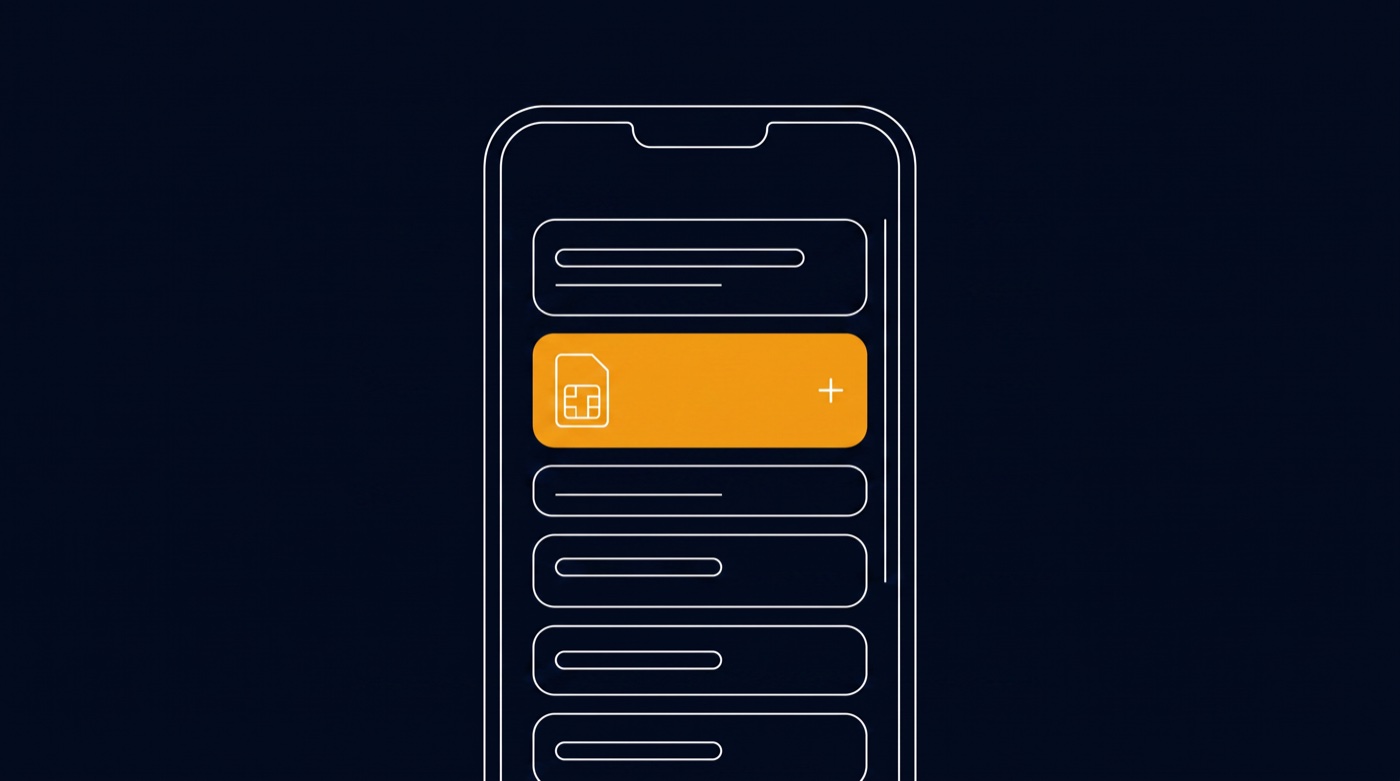
- Open Settings and tap Mobile Service (called Mobile Data on older iOS versions).
- Tap Add eSIM, then Use QR Code.
- Point the camera at your VoicePro QR code and follow the prompts.
- When asked to label the plan, choose something you will recognise, for example "VoicePro".
- If this is your main number, set VoicePro as the default for calls, messages and mobile data when iOS asks.

Check it is working
Within a few minutes you should see signal bars and the network name in Control Centre. Make a short test call and open a web page with Wi-Fi switched off.
If something is not right
- Restart the phone first - this resolves most first-activation issues.
- A QR code can only be installed once. If the install failed part-way, contact us and we will issue a fresh code.
- Still stuck? Raise a ticket from the Submit a ticket page and include your order reference.
Was this article helpful?
That’s Great!
Thank you for your feedback
Sorry! We couldn't be helpful
Thank you for your feedback
Feedback sent
We appreciate your effort and will try to fix the article