Android phones vary slightly by manufacturer, but eSIM installation follows the same pattern everywhere: scan the VoicePro QR code from the network settings menu.
Before you start
- The phone must be unlocked (not tied to another network) and on Wi-Fi.
- Have your QR code ready - it is in your confirmation email and in the VoicePro app.
Install the eSIM
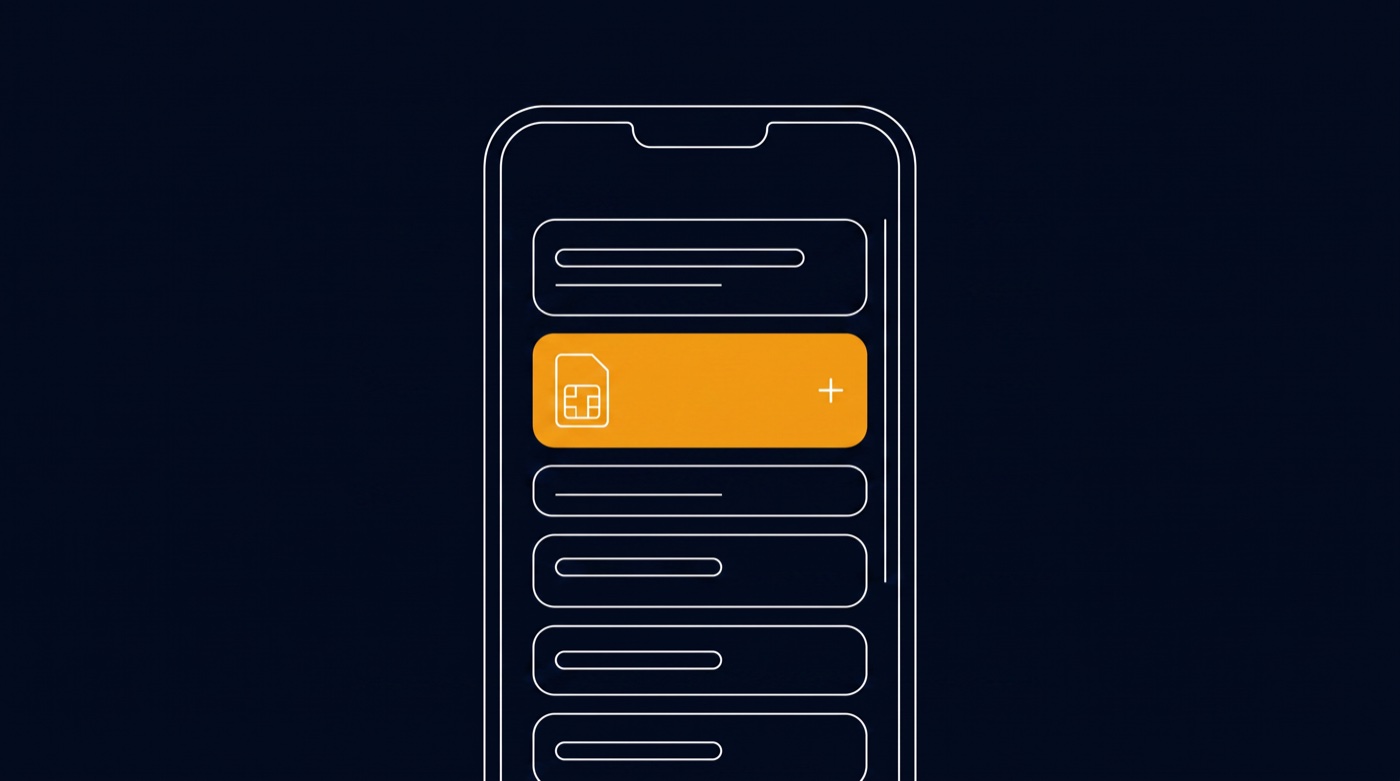
On a Google Pixel:
- Open Settings > Network & internet > SIMs.
- Tap Add SIM > Download a new eSIM.
- Scan your VoicePro QR code and follow the prompts.
On a Samsung Galaxy:
- Open Settings > Connections > SIM manager.
- Tap Add eSIM > Scan QR code.
- Scan your VoicePro QR code and confirm.
On other Android brands, look for "eSIM", "SIM manager" or "Mobile network" inside Settings - the option to add a plan by QR code is always in that area.

After installing
Enable the new plan in the same menu, and set it as your default for calls, texts and data if it is your main number. Give it a minute, then test a call and some mobile data with Wi-Fi off.
If something is not right
- Restart the phone - most activation glitches clear on reboot.
- Each QR code works once; if an install failed half-way, contact us for a fresh code.
- If your phone cannot find an eSIM option at all, it may not support eSIM - see "Which devices support eSIM?" or order a physical SIM instead.
Was this article helpful?
That’s Great!
Thank you for your feedback
Sorry! We couldn't be helpful
Thank you for your feedback
Feedback sent
We appreciate your effort and will try to fix the article